How To Use Mouse And Keyboard On PS5 With Compatible Games
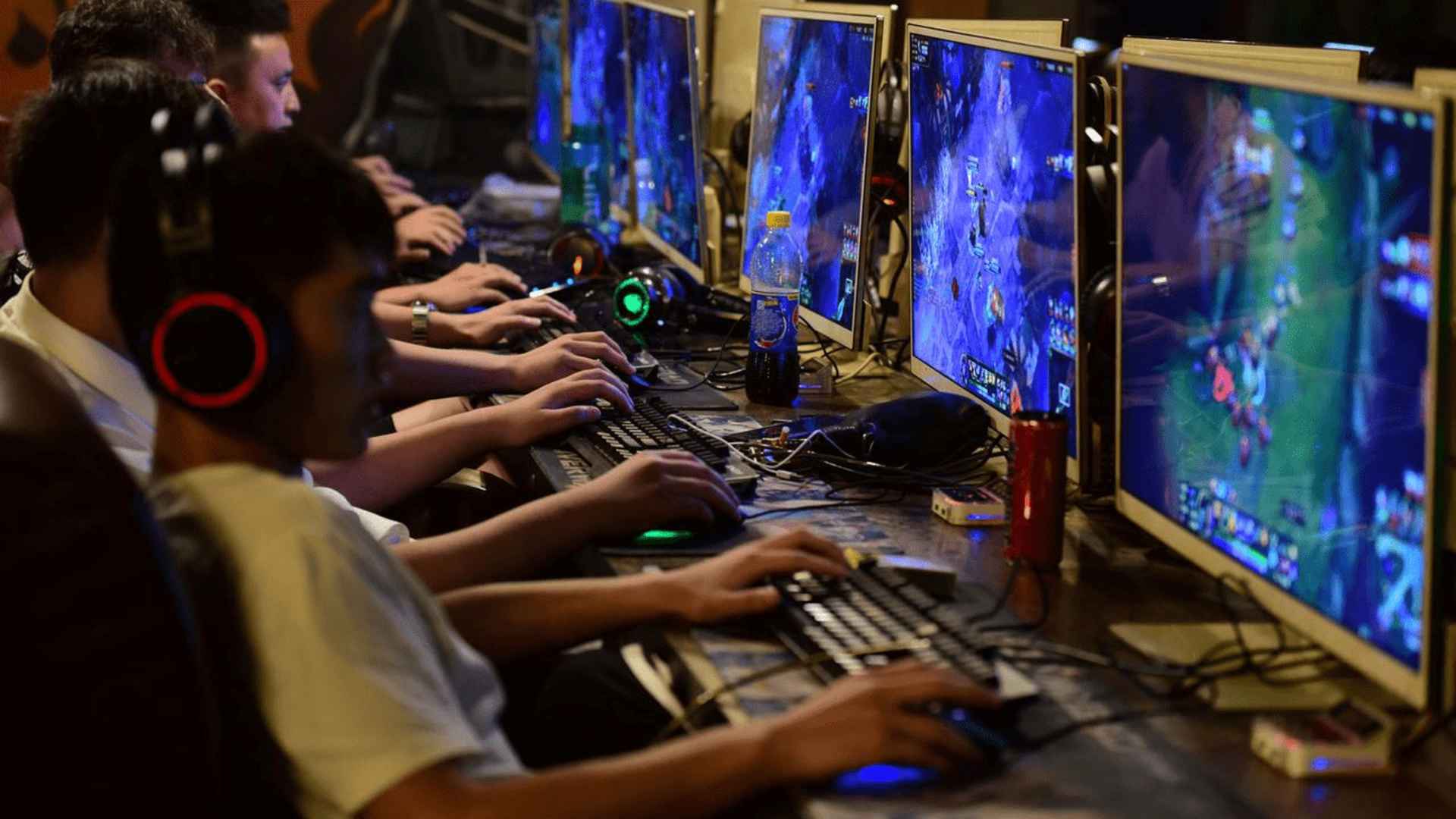
Connecting a mouse and keyboard to your PlayStation 5 can completely transform your gaming experience, especially in competitive first-person shooters and complex strategy titles. While the DualSense controller offers immersive haptic feedback, PC peripherals provide superior precision for aiming and navigation. Setting up these peripherals is straightforward, though understanding how the system detects them is crucial for smooth performance.
Connecting Wired and Wireless Peripherals to PS5
To connect wired accessories, plug your USB keyboard and mouse directly into any available USB ports on the console. The PlayStation 5 will instantly recognize the devices and display a prompt confirming their connection. For wireless devices, simply plug the USB dongle into the back or front ports of the console.
Bluetooth devices can also be paired directly through the system settings menu under the Accessories section. Navigate to General and select Bluetooth Accessories to put your keyboard and mouse into pairing mode. Once detected, confirm the connection to begin using them across compatible interface menus.
Adjusting Peripheral Settings for Optimal Performance
Once connected, you can customize pointer speeds and layout preferences directly within the PS5 menu. Heading over to Settings and selecting Accessories allows you to adjust key repeat delays, pointer speed, and left- or right-handed mouse orientation. Fine-tuning these parameters ensures your input response matches your personal gaming preferences.
It is important to remember that in-game sensitivity controls operate independently from system-level settings. Most supported video games feature dedicated sub-menus for adjusting DPI sensitivity, keybindings, and aiming acceleration. Experimenting with both system and in-game adjustments will deliver the smoothest control scheme possible.
Understanding Game Compatibility and Restrictions
While the console natively supports keyboard and mouse inputs for system navigation, individual developers decide whether to enable support in their software. Titles like Call of Duty, Fortnite, and Final Fantasy XIV fully support direct inputs without additional hardware. However, unsupported games will require you to use the standard controller regardless of connected devices.
Many competitive multiplayer titles separate lobbies based on input methods to maintain fair gameplay balanced for all players. Plugging in a mouse might automatically place you into lobbies with PC users or other peripheral players. Checking game settings before launching matchmaking ensures you understand how input preferences affect queue times.
Troubleshooting Common Input Issues
If your devices fail to respond, verify that the cables or USB receivers are securely attached to the console ports. Using the high-speed USB ports on the back of the console can often resolve bandwidth issues encountered with specialized gaming peripherals. Restarting the console while devices remain plugged in can also refresh system detection.
Some high-end mechanical keyboards require more power than standard USB ports deliver, leading to unexpected disconnections. Utilizing powered USB hubs or disabling complex RGB lighting profiles can resolve stability problems. Keeping your hardware firmware updated via PC software prior to console use also prevents compatibility errors.